Solving USB-C Charging Port Issues: Cleaning, Diagnosis, and Repair for iPhone & Android
Is your iPhone or Android phone charging slowly or not at all? Discover how to safely clean your USB-C port, diagnose common charging issues, and learn when it's time for a professional port replacement in Bangalore.
Introduction: The Universal USB-C Charging Problem
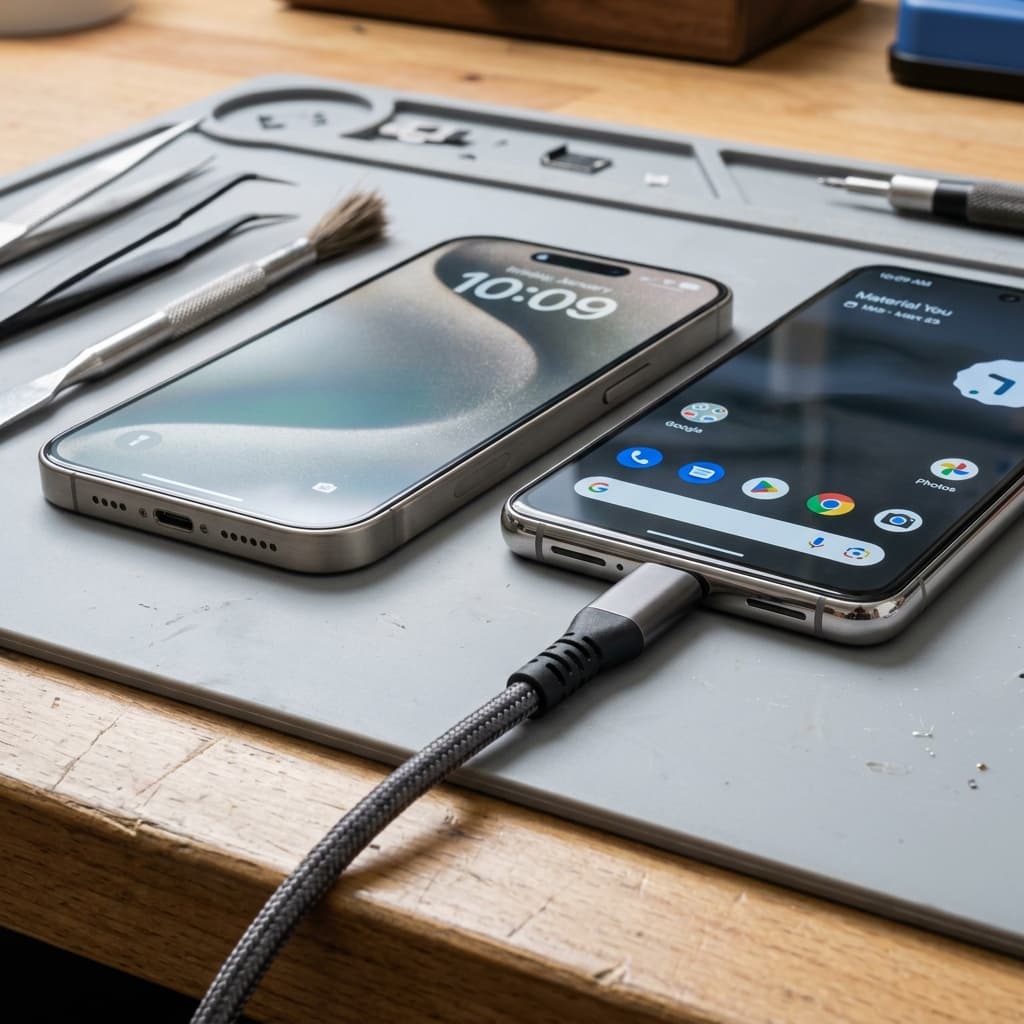
In 2026, USB-C is the undisputed universal standard for charging. From the iPhone 15, 16, and 17 series to Android flagships like the Samsung Galaxy S26, Google Pixel 10, and OnePlus 14, almost every smartphone relies on a USB-C port. While this consolidation makes cables interchangeable, it also means we all face a shared vulnerability: charging port debris and physical wear. Over months of use, pocket lint, dust, and moisture get packed into the port, causing slow charging, connection dropouts, or complete charging failure.
If you have to wiggle your charging cable or place your phone at a specific angle to get power, the port is likely clogged or damaged. At iOne Care Technology in Bangalore, we recover dozens of unresponsive charging ports daily. Before booking a repair, follow this professional guide to safely clean, diagnose, and troubleshoot USB-C ports on both Apple and Android devices.
1. Identifying the Symptoms: Is it the Cable, the Charger, or the Port?
Before cleaning, you need to isolate the problem. Here are the symptoms that point directly to the USB-C port itself:
- Loose Cable Connection: The charging cable doesn't "click" securely into place and falls out easily when the phone is moved.
- Intermittent Power: The phone starts and stops charging repeatedly, or only charges when the cable is angled or pressed in.
- Slow Charging: Your device displays "Charging slowly" (Android) or fails to show "Fast Charging" / "Power Delivery" (iPhone). A full charge takes 4-5 hours instead of 1 hour.
- Liquid/Moisture Detection Alerts: Your iPhone displays a "Liquid Detected" warning, or your Android phone shows a persistent "Moisture in USB port" notification, blocking charging even when the device seems dry.
2. How to Safely Clean a USB-C Port: Step-by-Step
Unlike old micro-USB or Lightning ports, USB-C has a thin connector tongue in the middle containing delicate gold pins on both sides. Cleaning must be done with extreme care. Never use metal needles, safety pins, or paperclips. Metal can short-circuit the battery contacts and permanently scrape off the gold plating from the connection pins.
The Cleaning Steps:
- Power Off: Completely shut down your iPhone or Android phone to prevent electrical short circuits.
- Inspect Under Light: Use a bright flashlight and look inside the port. You are looking for grey pocket lint compressed at the very bottom.
- Use a Non-Conductive Pick: Shave down a wooden toothpick to make it thin and flat, or use a plastic dental pick. Gently insert it around the center tongue, scraping out packed lint from the bottom corners.
- Blow Compressed Air: Spray a few short bursts of compressed air into the port to clear out loose particles. Avoid blowing with your mouth, as moisture in your breath can trigger liquid sensors.
- Clean Corrosion/Oxidation: Wrap a tiny shred of lint-free paper around your toothpick, dip it in 99% Isopropyl Alcohol, and gently wipe the gold pins. Let it dry for 5 minutes.
3. Platform-Specific Diagnostics
Once cleaned, use these software and hardware tricks to diagnose the connection on iOS and Android:
For iPhone (iOS):
- Check Accessories Setting: Go to Settings → Face ID & Passcode and ensure "USB Accessories" is enabled so the port detects data connections.
- Optimized Charging Check: If charging stops at 80%, this is an iOS battery health feature, not a port issue. Verify under Settings → Battery → Battery Health & Charging.
For Android:
- Use the Ampere App: Download the "Ampere" app from Google Play. It shows the real-time charging current. A good connection should output at least 1500mA to 3000mA+ under fast charging.
- Clear USB Settings Cache: Go to Settings → Apps → System Apps → USB Settings. Tap Storage → Clear Data to reset the USB detection daemon if moisture warning is stuck.
4. When to Seek Professional Repair
If cleaning and testing different chargers don't work, the port has suffered physical damage. A professional replacement is required if:
- The central tongue is cracked or wobbly: This breaks internal pins and makes connection impossible.
- Severe liquid corrosion has occurred: Saltwater, soda, or sweat corrodes the gold pads beyond recovery.
- Internal micro-solder cracks: Wiggling the cable eventually cracks the microscopic joints connecting the port to the logic board.
How Repair Differs by Device:
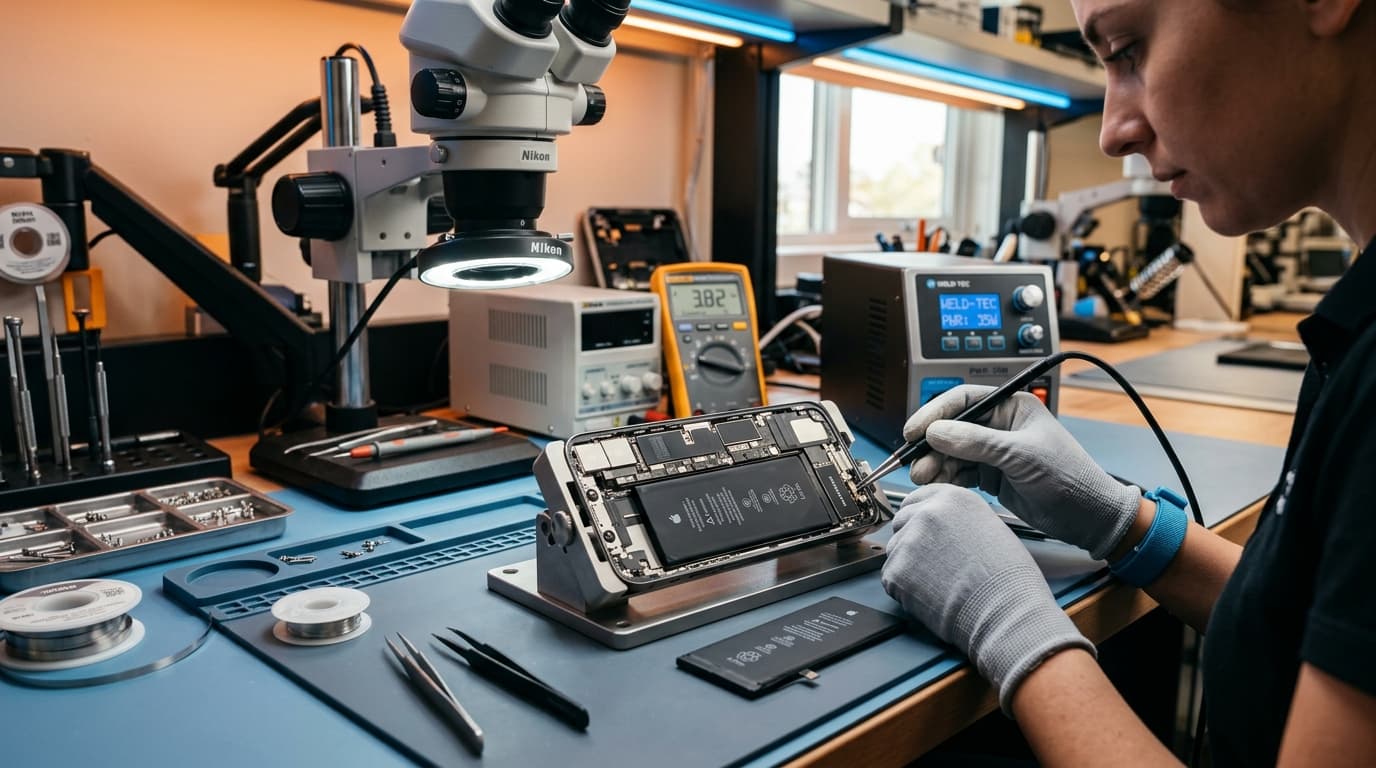
On most Android devices, the USB-C port resides on a separate daughterboard, making replacement a straightforward modular part swap. However, on iPhones and select premium Android flagships, the USB-C port is soldered directly to the main logic board. Replacing it requires high-precision micro-soldering under a microscope to avoid damaging surrounding chips.
Why Choose iOne Care Technology for USB-C Port Repairs
At iOne Care Technology in Bangalore, our technicians are certified for both iOS and Android hardware repairs. We offer:
- Micro-Soldering Expertise: Safe, microscope-guided port replacements for iPhones, Google Pixel, and OnePlus devices.
- Genuine and OEM Parts: We use only premium ports and boards to preserve fast-charging capabilities.
- Same-Day Turnaround: Most charging port repairs are completed within 45 to 60 minutes.
- On-the-Spot Charging Test: Every replacement port is tested with high-current chargers and data transfer in front of you before handover.
Don't let charging issues slow you down. Visit our Bangalore service center or contact us today to get your device charging like new!
Need Professional Repair?
If you're experiencing device issues, our certified technicians are here to help. Get fast, reliable repairs with genuine parts and thorough quality testing.